
मुफ्त · local processing · साफ explanation
Windows shortcut को चलाए बिना सुरक्षित जाँचें
Shortcut Remover आपकी files upload नहीं करता। Report बताती है कि कितनी files और folders जाँचे गए, कौन-सी access errors आईं और scan पूरा हुआ या नहीं।
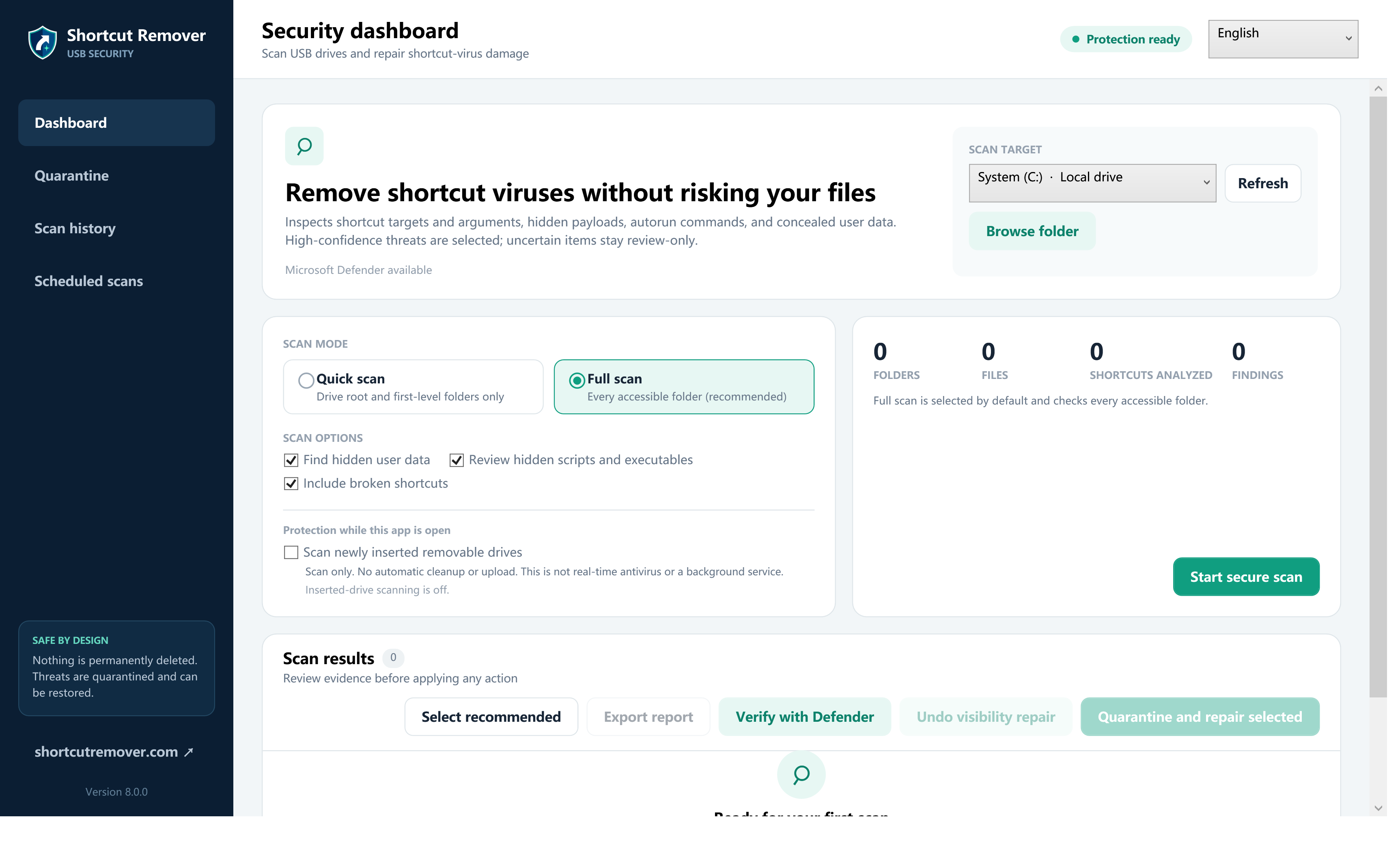
Black-box “एक click में सब delete” वाला tool नहीं
.lnk Windows का सामान्य shortcut format है। Risk उसके target, arguments और बनने की परिस्थिति से तय होता है। इसलिए app scan, quarantine, hidden-file repair और Defender verification को अलग-अलग रखती है।
Target और arguments साफ दिखें
Shortcut खोले बिना command launcher, script, hidden window और remote path जैसे संकेत देखें।
Coverage का प्रमाण
Files, folders, access errors और incomplete result खुलकर report होते हैं।
वापस की जा सकने वाली quarantine
Permanent deletion से पहले review और false positive को ठीक करने का मौका मिलता है।
सुरक्षित तरीके से काम करने का सही क्रम
- अचानक दिखे अनजान shortcut पर double-click न करें।
- पहले USB drive को scan करें, फिर उस Windows PC को जाँचें जहाँ वह लगी थी।
- कुछ बदलने से पहले target, arguments और drive letter की पुष्टि करें।
- संदिग्ध item को तुरंत permanently delete करने के बजाय पहले quarantine करें।
- Scan पूरा होने के बाद files को फिर से visible करें और जरूरी documents को clean storage में copy करें।
जरूरी बात: attrib command files को visible कर सकती है, लेकिन चल रहे malware को हटाती नहीं। किसी video में दिखा drive letter बिना जाँचे इस्तेमाल न करें।
भारतीय Windows users के लिए आम शब्द
भारत में लोग “USB drive”, “pen drive”, “shortcut”, “scan” और “folder” जैसे शब्द ही रोज बोलते हैं। इसलिए text में जरूरत से ज्यादा शुद्ध या अनजाने हिन्दी शब्द थोपे नहीं गए हैं; menu names File Explorer और Windows Security के साथ पहचाने जा सकते हैं।