
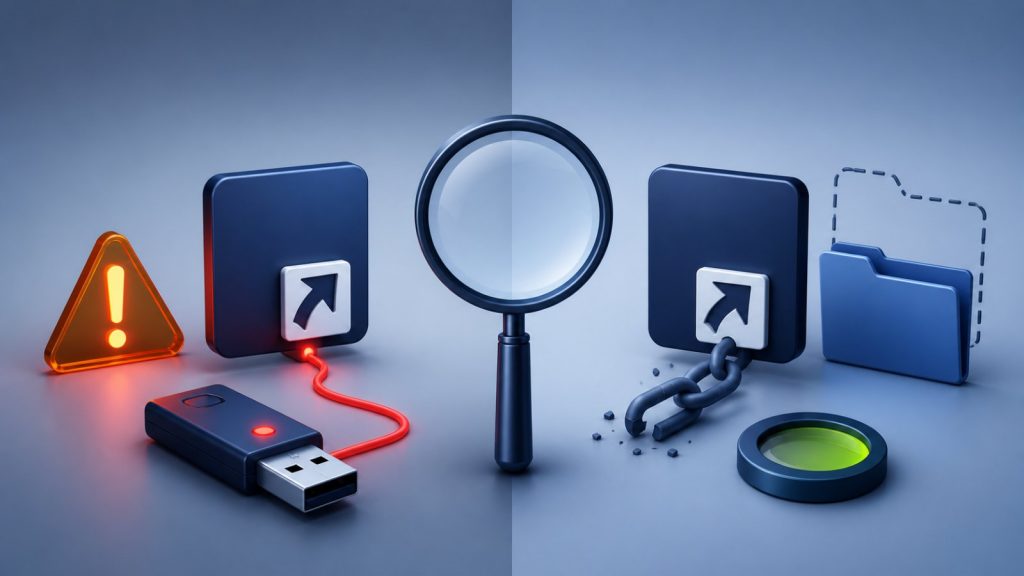
A shortcut that does not work is inconvenient. A shortcut that launches an unexpected command can be a security risk. Both are .lnk files, and both may display a familiar name or icon, so the difference is not always obvious from File Explorer.
The reliable approach is to inspect context: where the shortcut came from, what it targets, which arguments it passes, and what changed around it. Do not decide based on the icon alone.
What is a broken shortcut?
A broken shortcut is normally a pointer whose destination no longer exists. The application may have been uninstalled, a document may have moved, a network share may be offline, or the removable drive letter may have changed. Opening it commonly produces a Windows message saying that the item it refers to has been changed or moved.
Typical signs include:
- The shortcut is in a place where you expect shortcuts, such as the Desktop or Start menu.
- Its target is a recognizable application or document path.
- The target is missing, but the shortcut does not invoke a command interpreter or script host.
- No group of folders disappeared at the same time.
Deleting an unneeded broken shortcut usually removes only the pointer. It does not delete a target that is already missing. Still, confirm the item is truly a shortcut before deleting it.
What is suspicious shortcut behavior?
In a shortcut-malware incident, original folders may be hidden and replaced with look-alike shortcuts. A shortcut can launch a command or executable and then open the expected folder, making the extra action easy to miss.
Warning signs include:
- Many USB folders suddenly appear as shortcuts.
- The shortcut launches
cmd.exe, PowerShell, a script host, or an executable stored on the removable drive. - The target or arguments contain long, obfuscated, or unexpected commands.
- The original folders are present but marked hidden or system.
- The same pattern returns after the drive is cleaned on one computer.
None of those signs alone identifies a specific malware family. They justify stopping and scanning before opening the shortcut.
Compare the target and arguments
Right-click a shortcut and choose Properties. On the Shortcut tab, review Target, Start in, and any command-line arguments. Do not click the target or copy a suspicious command into a terminal.
A normal application shortcut may target a signed program under C:\Program Files. A document shortcut may point directly to a file you recognize. A suspicious USB shortcut may instead use a command interpreter and several chained commands before opening a folder.
Attackers can imitate names and icons, so a familiar label is not proof of safety. Digital signatures, known installation paths, and independent antivirus results provide stronger evidence.
Use a scanner that explains its decision
Shortcut Remover examines shortcut targets and arguments and reports the signals behind a finding. That is more useful than deleting every .lnk file, because legitimate shortcuts are common.
For a removable drive incident, use a full scan and check:
- the selected root and drive letter;
- directories and files inspected;
- access-error count;
- whether a safety limit stopped the scan;
- whether the result is marked complete.
Follow with a Microsoft Defender scan. One tool’s result should not be treated as infallible, especially when the shortcut launches a separate executable or script.
Choose the right action
| Observation | Safer next step |
|---|---|
| Target is a moved document you recognize | Repair or recreate the shortcut. |
| Target is missing and the shortcut is no longer needed | Delete the shortcut after confirming the file type. |
| Shortcut launches an unexpected command or USB executable | Do not open it; scan and quarantine it for review. |
| Original folders are hidden and look-alike shortcuts appeared | Scan the PC and USB drive, quarantine reviewed findings, then restore visibility. |
| Evidence is unclear or business data is involved | Preserve the drive and ask a qualified incident responder. |
The practical distinction
A broken shortcut fails because its intended destination is unavailable. A suspicious shortcut does more than you reasonably expect—or appears as part of a broader change to the drive. Inspect behavior and context, not just appearance.
Related: Is it safe to delete .lnk files? and what to do when USB files turn into shortcuts.