 Shortcut Remover
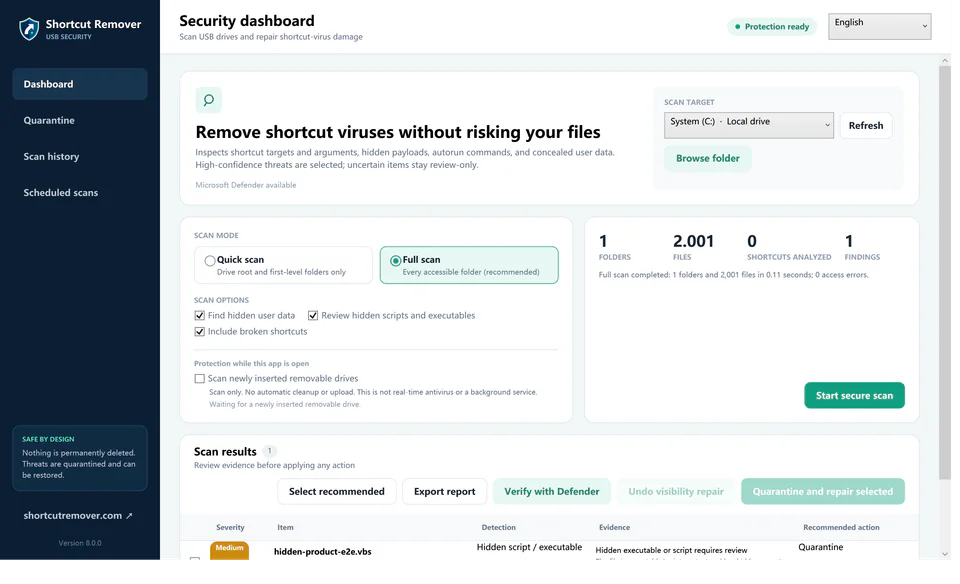
Identify the installed copy you want
Find the app in Start and check the entry for its expected publisher or version. Open a trusted installed copy from Start and confirm its version in the app’s About screen. If you cannot identify an installed copy, use Settings → Apps → Installed apps to inspect what is present.
Replace the stale pin
Close the older instance and right-click the stale taskbar icon to unpin it. Pin the verified app from Start or from its running taskbar icon. Open the new pin and compare the About version with the one you verified.
Check desktop links separately
If a desktop icon still opens the old version, review its target in Properties. Free Shortcut Remover can help compare the targets of ordinary desktop shortcuts. Change Windows taskbar pins through the taskbar controls.