 Shortcut Remover
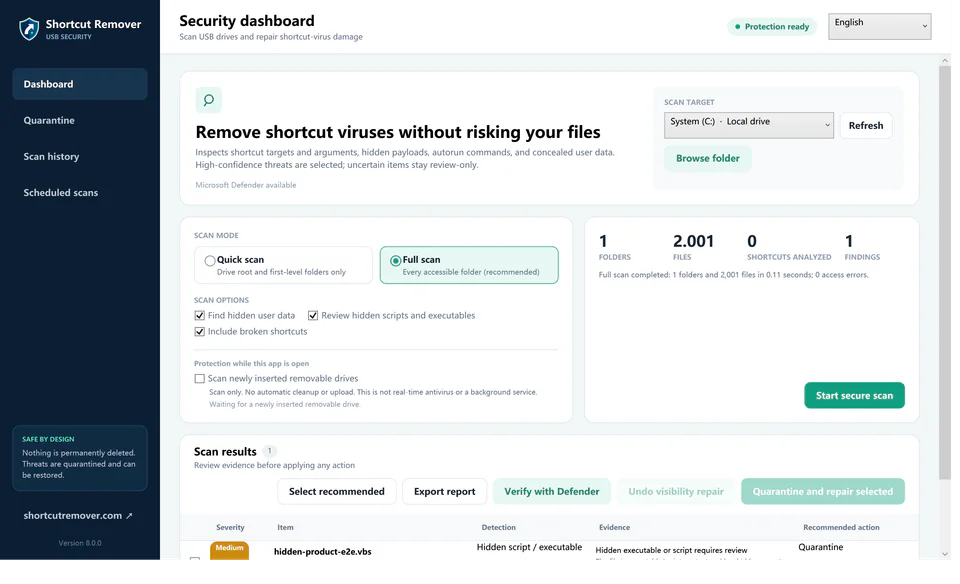
Confirm the drive and folder
In File Explorer, open This PC and identify the drive by its label, then browse directly to the folder you expect. If an old shortcut points to E:\Photos and your archive is now F:\Photos, first verify that the new location contains your own known files.
Create a fresh shortcut
Right-click the verified folder and use Show more options → Send to → Desktop (create shortcut), where available. Compare the new shortcut’s Target in Properties with the verified path. A shortcut can break again if the drive later gets another letter.
Review the old result
Use Free Shortcut Remover to review stale desktop shortcuts in one pass. Check the old target before selecting the old entry for cleanup. Retain the verified new shortcut and keep anything whose original destination you still need to investigate.